
Create Text Block

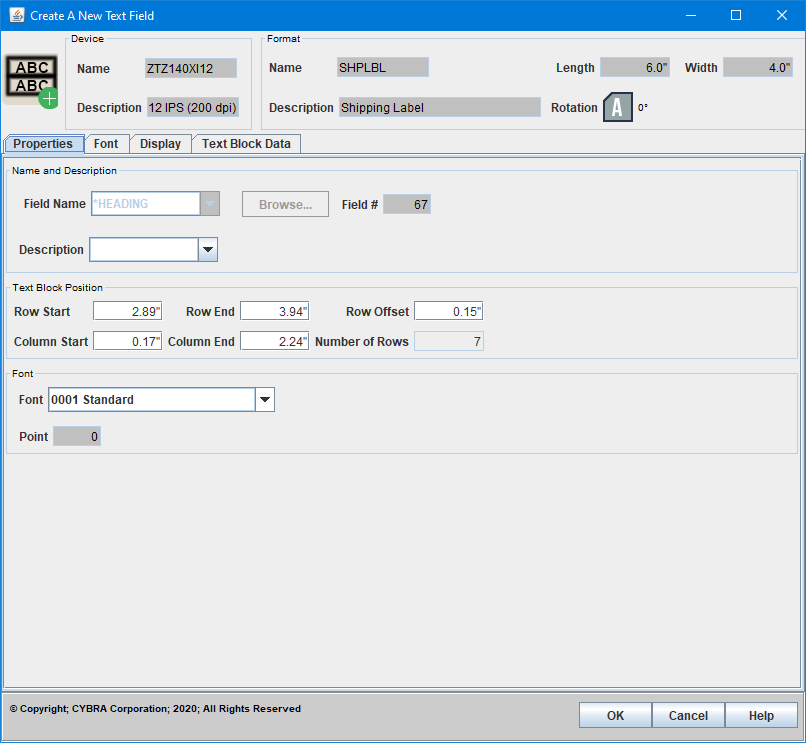
The Create A New Text (Block) Field dialog is used to add new text block fields to your format. When editing an existing text block field, an exact duplicate dialog called Edit A Text (Block) Field is displayed instead.
Properties
Name and Description
- Field Name - Text Blocks print static information only. With that in mind, they will always default to *HEADING.
- Browse... -
- Field # - An automatically assigned number for the field. This is an internally used number for list ordering and field identification.
- Description -
Text Block Position
- Row Start -
- Row End -
- Row Offset -
- Column Start -
- Column End -
- Number of Rows -
Font
- Font -
- Point -
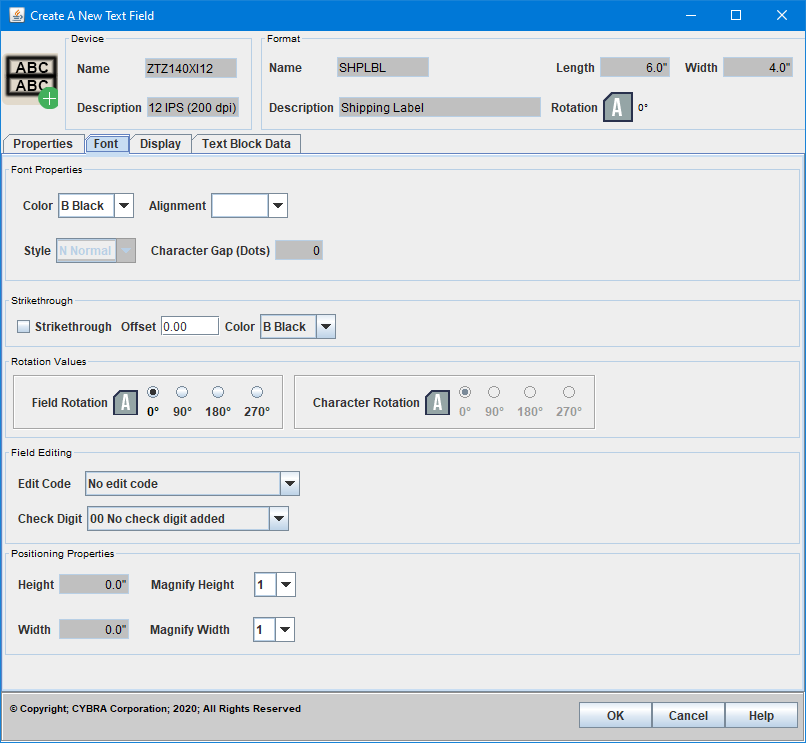
Font
Font Properties
- Color -
- Alignment -
- Style -
- Character Gap (Dots) -
Strikethrough
- Strikethrough -
- Offset -
- Color -
Rotation Values
- Field Rotation -
- Character Rotation -
Field Editing
- Edit Code -
- Check Digit -
Positioning Properties
- Height -
- Width -
- Magnify Height -
- Magnify Width -
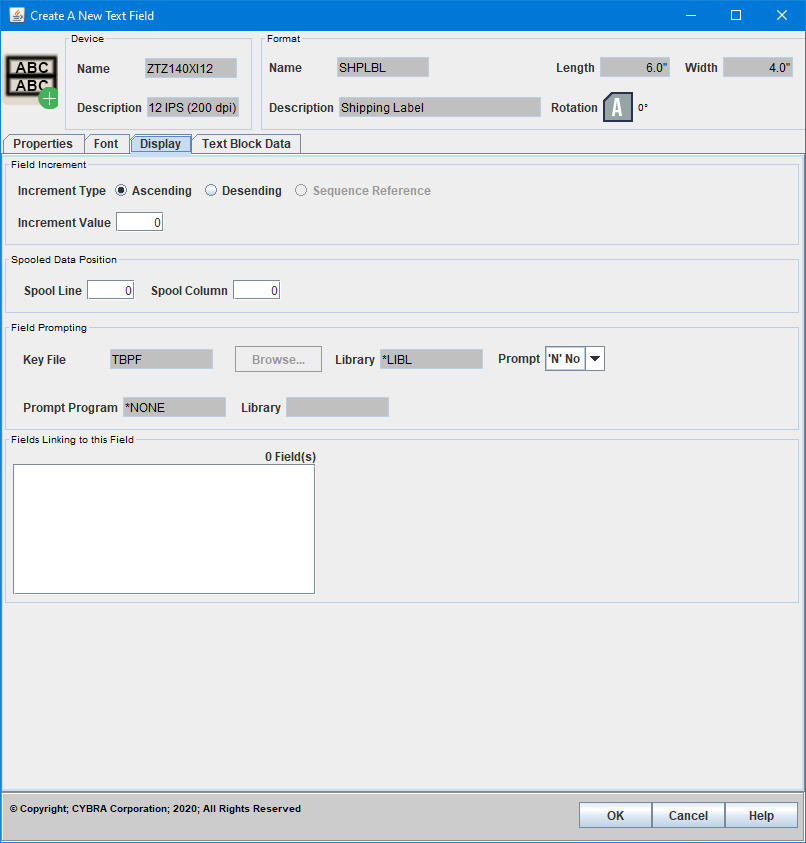
Display
Field Increment
- Increment Type -
- Increment Value -
Spooled Data Position
- Spool Line -
- Spool Column -
Field Prompting
- Key File -
- Library -
- Prompt -
- Prompt Program -
- Library -
Fields Linking to this Field
- Fields - Since Text Block cannot be linked to, this value is unused.
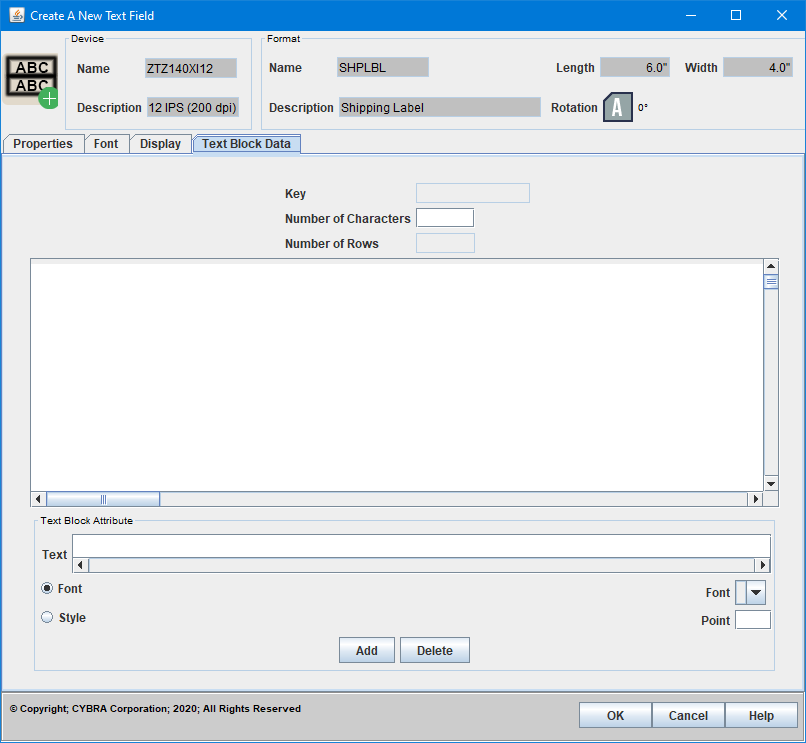
Text Block Data
- Key -
- Number of Characters -
- Number of Rows -
- Data -
Text Block Attribute
- Text -
- Font/Style -
- Font -
- Point -
- Add -
- Delete -